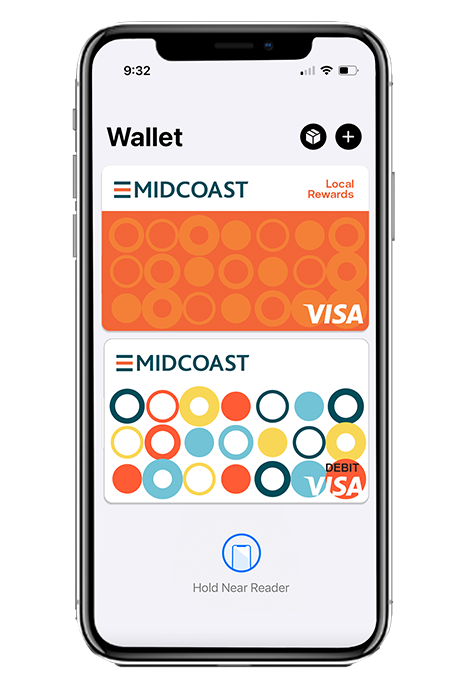
What is a mobile wallet?
A mobile wallet is a secure digital space on your smartphone, smart watch, or other mobile device. It stores your payment information electronically, allowing you to make purchases without carrying your physical cards.
With a simple tap, you can pay for goods and services wherever mobile wallet payments are accepted. Whether you’re shopping online, on the road traveling, or grabbing your morning coffee, a mobile wallet makes everyday purchases easier, faster, and more secure.

Top 5 Reasons to add your Midcoast FCU debit and credit cards into a mobile wallet
- 1. Enhanced Security
Mobile wallets offer an extra layer of protection that traditional payment methods don’t. Instead of sharing your actual card number during a transaction, mobile wallets use encrypted technology and a unique device specific account number to help protect your information.
This added security can also help reduce the risk of card skimming. Card skimming occurs when criminals install devices on ATMs, fuel pumps, or payment terminals to secretly capture card information. Because mobile wallet transactions use encrypted credentials rather than your card’s actual information, your data is better protected.
- 2. Convenience at Your Fingertips
Occasionally, we all leave the house without our wallet or purse, but most of us never forget our phones or our smart watch. Adding your Midcoast cards to your mobile wallet means your payment methods are always within reach, making it easy to pay anytime and almost anywhere.
- 3. Fast, Smooth, and Hassle-Free
Mobile wallet transactions are quick and seamless. Whether you’re tapping to pay in store or checking out online, payments can be completed in seconds, helping you move through check out faster. There’s no need to dig through your wallet or enter card details manually, making everyday transactions simpler and stress free.
- 4. One Wallet, Many Possibilities
Mobile wallets aren’t limited to debit and credit cards. They can also store event tickets, boarding passes, coupons, rewards cards, and more. Everything you need can be organized in one convenient place, helping streamline your day-to-day activities.
- 5. The Future is in Mobile Wallets
The way we pay is evolving. More businesses are adopting contactless payment technology, meaning mobile wallets are becoming the standard way to pay. Adding your cards today helps you stay connected to the latest payment technology and prepared for the way people pay today and in the future.
It’s Easy to Add Your Midcoast Card’s to Your Digital Wallet:
Adding your Midcoast debit and credit cards to your mobile wallet takes just a few minutes. Midcoast cards are compatible with Apple Pay, Google Pay, and Samsung Pay, making it easy to start enjoying the benefits of digital payments right away. Once you’re set up, simply hold your device near a contactless payment terminal, tap to pay, and you’re done. It’s that easy! Follow the directions below to get started with your specific device. If you need assistance with this feature, click on the Chat icon within the application or contact our eBranch at 877.964.3262.
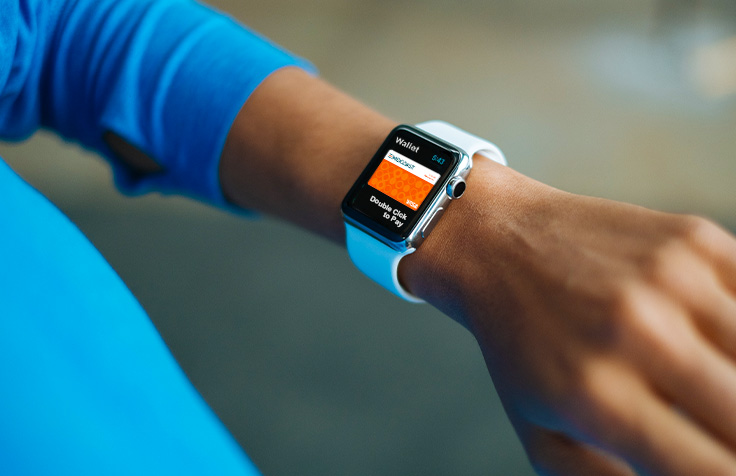
Use your watch as a mobile wallet!
Your Midcoast FCU Debit and Credit Cards are accepted within Apple Pay service on compatible watch devices.
Get started with Apple Pay®:
- On your paired iPhone, open the Apple Watch app.
- In the My Watch tab, tap Wallet & Apple Pay.
- Tap Add Card. Tap Debit or Credit Card (both Midcoast FCU cards are compatible) and tap to add a new card.
- Tap Continue.
- Enter the CVV credentials from the back of the card, and submit.
- The app will ask you to verify the information via apple pay. Once complete it will advise “card activated.”
- You are now able to make purchases by holding your watch over the store’s card reader and double clicking on the watch’s side button.
1Available on iPhone 6, Apple Watch, iPad Air 2 and iPad mini 3. or newer. See Apple site for complete list
2Android Pay is available for any NFC- and HCE-enabled Android device running KitKat 4.4+, or newer. See site for complete list.
3Available on Galaxy S6, S6 edge, and other select Samsung devices. See Samsung site for complete list
Apple, the Apple logo, iPhone and iPad are trademarks of Apple, Inc., registered in the U.S. and other countries. Apple Pay and Touch ID are trademarks of Apple Inc.
Android, Android Pay, Google Play, and the Android Logo are trademarks of Google Inc.
©2026 Samsung Electronics America, Inc. Samsung, Samsung Pay, Samsung Galaxy, Samsung Knox and Galaxy S (and other device names) are trademarks or registered trademarks of Samsung Electronics Co., Ltd. Use only in accordance with law. Other company and product names mentioned may be trademarks of their respective owners. Samsung Pay is available on select Samsung devices.